Speech
Introduction
Speech covers two abilities: listening and speaking.
Listening: ASR results are returned through SkillCallback, and NLP results are returned through ModuleCallBack.
Speaking: you can choose from a variety of voices in the settings.
Create a Speech Service Callback
SkillCallback mSkillCallback = new SkillCallback() {
    @Override
    public void onSpeechParResult(String s) throws RemoteException {
        //interim speech recognition result
    }
    @Override
    public void onStart() throws RemoteException {
        //recognition started
    }
    @Override public void onStop() throws RemoteException {
        //recognition ended
    }
    @Override public void onVolumeChange(int volume) throws RemoteException {
        //volume of the recognized voice changed
    }
    /**
      @param status 0 : normal return
      1 : other return
      2 : noise or single_other return
      3 : timeout
      4 : forcibly canceled
      5 : ASR result ended early without going through NLU
      6 : other return when the semantics are the same in full-duplex mode
      */
    @Override
    public void onQueryEnded(int status) throws RemoteException {
        //status
    }
    @Override
    public void onQueryAsrResult(String asrResult) throws RemoteException {
        //asrResult: final recognition result
    }
}
Supported platforms:
| GreetingBot | GreetingBot Mini | LuckiBot | DeliverBot Max | BigScreenBot |
| Yes | Yes | Yes | Yes | Yes |
Connect to the Speech Service
final SkillApi skillApi = new SkillApi();
skillApi.connectApi(context, new ApiListener() {
    @Override
    public void handleApiDisabled() {
    }
    @Override
    public void handleApiConnected() {
        //speech service connected; register the speech callback
        skillApi.registerCallBack(mSkillCallback);
    }
    @Override
    public void handleApiDisconnected() {
        //speech service disconnected
    }
});
Supported platforms:
| GreetingBot | GreetingBot Mini | LuckiBot | DeliverBot Max | BigScreenBot |
| Yes | Yes | Yes | Yes | Yes |
TTS Playback
Method name: playText
How to call
skillApi.playText(text, new TextListener() {
    @Override
    public void onStart() {
        //playback started
    }
    @Override
    public void onStop() {
        //playback stopped
    }
    @Override
    public void onError() {
        //playback error
    }
    @Override
    public void onComplete() {
        //playback completed
    }
});
Parameters
- text: the text to play with TTS Note: JSON content cannot be played. Avoid long strings that we cannot support in TTS text, such as hyperlinks or garbled character sequences, as they may cause the call to fail. We recommend keeping a single TTS playback within 300 characters, with a maximum of 1000. If the text is too long, play it with TTS in segments.
Supported platforms:
| GreetingBot | GreetingBot Mini | LuckiBot | DeliverBot Max | BigScreenBot |
| Yes | Yes | Yes | Yes | Yes |
Streaming TTS Playback (Requires ROM 10.3 or Later)
Method name: playText
How to call
skillApi.playText(new TTSEntity(textSid, streamSid, text), new TextListener() {
    @Override
    public void onStart() {
    //called when a text item starts, not when the passage starts
    }

    @Override
    public void onStop() {
    //text playback stopped
    }

    @Override
    public void onError() {
    //playback error
    }

    @Override
    public void onStreamComplete(String streamSid, String textSid) {
    //text playback completed
    }
});
Parameters
- textSid: text ID. Different text items must have different IDs. Format: UUID. Can be empty, in which case an ID is assigned automatically.
- streamSid: passage ID. All text in the same passage must use the same ID. Format: UUID. Can be empty, in which case each call is treated as a separate passage and each playText call interrupts the previous one.
- text: the text to play with TTS Note: JSON content cannot be played. Avoid long strings that we cannot support in TTS text, such as hyperlinks or garbled character sequences, as they may cause the call to fail. We recommend keeping a single TTS playback within 300 characters, with a maximum of 1000. If the text is too long, play it with TTS in segments.
Usage: Suppose you have a passage of 10 sentences that arrive one by one. When the passage starts, generate a unique streamSid, use a different textSid for each sentence, and call the playText API 10 times. Because the 10 sentences share the same streamSid, the calls do not interrupt each other, so you can call the playText API while the previous sentence is still playing. When each sentence finishes playing, you receive a completion event in the onStreamComplete callback, which tells you which sentence finished so that you can highlight it. Note: Different passages must use different streamSid values and can interrupt each other. Two playText calls with an empty streamSid are also treated as two different passages and will interrupt each other.
Supported platforms:
| GreetingBot | GreetingBot Mini | LuckiBot | DeliverBot Max | BigScreenBot |
| Yes | Yes | Yes | Yes | Yes |
Stop TTS Playback
Method name: stopTTS
How to call:
skillApi.stopTTS();
Supported platforms:
| GreetingBot | GreetingBot Mini | LuckiBot | DeliverBot Max | BigScreenBot |
| Yes | Yes | Yes | Yes | Yes |
Set the Listening Mode
The robot has two listening modes: single listening and long listening (continuous listening). In single listening mode, the user must wake up the robot before each utterance. In continuous listening mode, the robot keeps listening in the background and returns a callback each time the user finishes a sentence. In API development, use this method to switch between long listening and single listening.
Note: This API only takes effect when both the “Speech Recognition” and “Continuous Listening” switches are turned on in the robot settings.
Method name: setRecognizeMode
How to call:
skillApi.setRecognizeMode(isContinue);
Parameters
- isContinue: boolean. true: continuous recognition; false: single recognition
Supported platforms:
| GreetingBot | GreetingBot Mini | LuckiBot | DeliverBot Max | BigScreenBot |
| Yes | Yes | Yes | Yes | Yes |
Set the Listening Mode —— Large Model (Effective on ROM 10.1 and Later)
Works the same way as setRecognizeMode. After a large language model has been integrated, call this API if you want to turn off long listening without turning off the return of streaming data.
Note: This API only takes effect when the “Speech Recognition” switch is turned on in the robot settings.
Method name: setRecognizeModeNew
How to call:
skillApi.setRecognizeModeNew(isContinue, isCloseStreamData);
Parameters
- isContinue: boolean. true: continuous recognition; false: single recognition
- isCloseStreamData: boolean. Only when the isContinue parameter is false does the isCloseStreamData parameter take effect. true: switch to single listening and turn off streaming data; false: switch to single listening without turning off streaming data
Supported platforms:
| GreetingBot | GreetingBot Mini | LuckiBot | DeliverBot Max | BigScreenBot |
| Yes | Yes | Yes | Yes | Yes |
Turn Speech Recognition Off or On
Note: This API only takes effect when both the “Speech Recognition” and “Continuous Listening” switches are turned on in the robot settings.
Remark: This switch turns speech recognition off or on. When it is off, speech features are completely disabled, and voice wake-up and the like no longer work. If you only need single listening, just set the listening mode (setRecognizeMode) to false; the robot then does not listen unless the user wakes it up.
Method name: setRecognizable
How to call:
skillApi.setRecognizable(enable);
Parameters
- enable: boolean. true: on; false: off
Supported platforms:
| GreetingBot | GreetingBot Mini | LuckiBot | DeliverBot Max | BigScreenBot |
| Yes | Yes | Yes | Yes | Yes |
Set the Speech Recognition Area
Method name: setAngleCenterRange
How to call:
skillApi.setAngleCenterRange(angleCenter, angleRange);
Parameters
- angleCenter: center angle, the center of the robot’s sound pickup. float, [0,360)
- angleRange: range angle, the range of the robot’s sound pickup. float, [0,120] Note that this parameter is deprecated. Check the supported models below; on other models the angleRange setting has no effect.
When setting the pickup center angleCenter, any angle value is allowed, but multiples of 60 degrees give performance more consistent with the straight-ahead direction. For example, 0, 60 or 120 degrees work better.
On models with a fixed pickup area, the pickup area is a sector extending 30 degrees to the left and right of the angleCenter angle. The pickup area has boundaries, but they are not stable (they are affected by the distribution of ambient noise). For example, if you set angleCenter to 0, the theoretical pickup range is from 30 degrees to 330 degrees as shown below, and the boundaries may extend beyond this range depending on the environment.
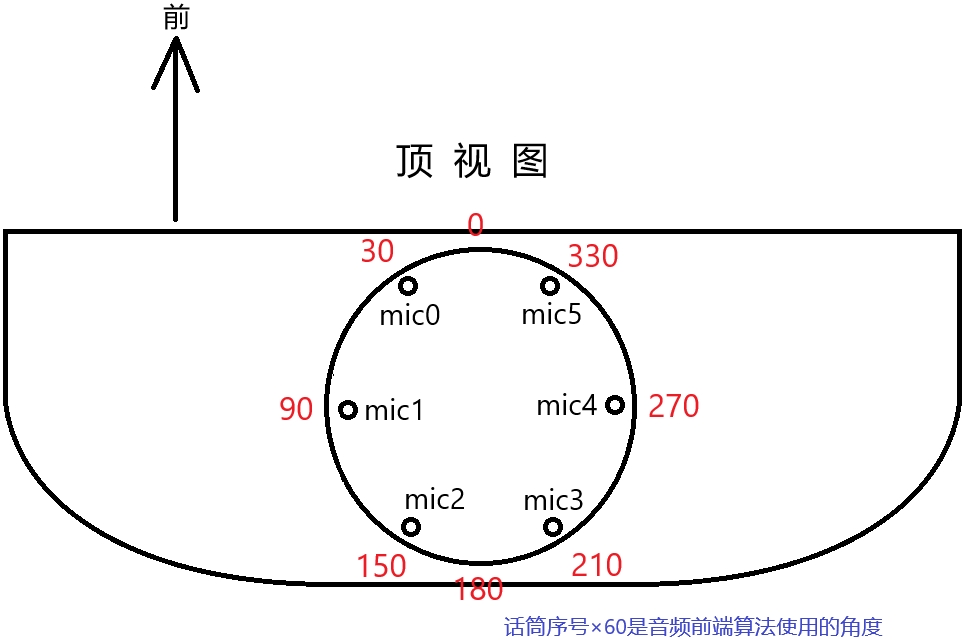
Currently only the first-generation algorithm supports setting the range angle with this API; the second-generation algorithm does not.
Supported platforms:
| GreetingBot 1.0 | GreetingBot 1.1 | BigScreenBot Retail Edition | Baohuaping | Other platforms |
| Yes | Yes | Yes | Yes | No |
Get NLP Results from Text
Method name: queryByText
How to call:
skillApi.queryByText(text);
Parameters
- text: the text to query, String
Supported platforms:
| GreetingBot | GreetingBot Mini | LuckiBot | DeliverBot Max | BigScreenBot |
| Yes | Yes | Yes | Yes | Yes |
Note: This API has no return value. The query result is returned through ModuleCallback’s onSendRequest as a voice command.
This method can be used to capture raw audio. It is implemented with Android’s built-in Recorder. However, because of the special nature of the robot’s microphone array, data can only be obtained from the Recorder with the correct parameters.
//audio sample rate (fixed at 16000)
private final int AUDIO_RATE = 16000;
//Buffer length
//(change the length as needed; the larger the buffer, the longer each frame, and very short recordings may not be saved)
private final int AUDIO_BUF_LEN = 5 * 2 * 16000;
//channel (stereo)
int channelConfig = AudioFormat.CHANNEL_IN_STEREO;
int minRecBufSize = AudioRecord.getMinBufferSize(AUDIO_RATE, channelConfig, AudioFormat.ENCODING_PCM_16BIT);
int recBufSize = minRecBufSize * 2;
AudioRecord audioRecorder =new AudioRecord(AudioSource.MIC, AUDIO_RATE, AudioFormat.CHANNEL_IN_STEREO, AudioFormat.ENCODING_PCM_16BIT, recBufSize);

...
...


//buffersize
//(change the length as needed; the larger the buffer, the longer each frame, and very short recordings may not be saved)
mBufferSize = AUDIO_BUF_LEN

//data capture
byte[] tempBufRec = new byte[mBufferSize];
byte[] bfOutLeft = new byte[channelConfig == AudioFormat.CHANNEL_IN_STEREO ? mBufferSize / 2 : mBufferSize];
byte[] bfOutRight = new byte[channelConfig == AudioFormat.CHANNEL_IN_STEREO ? mBufferSize / 2 : mBufferSize];

int readBytes = mAudioRecorder.read(tempBufRec, 0, mBufferSize);
if (readBytes == mBufferSize) {
    deinterleaveData(tempBufRec, bfOutLeft, bfOutRight, minRecBufSize);
    //separated data; bfOutLeft is the data you need
    saveData(bfOutLeft)
}


...
...
...

//separate left and right channel data
private void deinterleaveData(byte[] src, byte[] leftdest, byte[] rightdest, int len)
{
    int rIndex = 0;
    int lIndex = 0;
    for (int i = 0; i < len; )
    {
        leftdest[rIndex] = src[i];
        leftdest[rIndex + 1] = src[i + 1];
        rIndex = rIndex + 2;
        rightdest[lIndex] = src[i + 2];
        rightdest[lIndex + 1] = src[i + 3];
        lIndex = lIndex + 2;
        i = i + 4;
    }
}
Supported platforms:
| GreetingBot | GreetingBot Mini | LuckiBot | DeliverBot Max | BigScreenBot |
| Yes | Yes | Yes | Yes | Yes |
The audio configuration parameters of this method can be used to integrate other audio/video SDKs. Agora and Tencent TRTC, which have been integrated this way, both capture audio normally.
The audio capture demo code can be found here: Click here
Note 1: All parameters (except BufferSize) are fixed and must not be changed; otherwise no data may be captured.
Note 2: Because of the special nature of VOIP call protocols, the robot does not currently support VOIP call protocols.
VOIP call protocols require the microphone to act as a communication device, not a media device. However, the robot’s 6-microphone array can only be used as a media microphone, not as a communication device. Therefore the robot does not support any recording based on communication devices, including VOIP.
Text to MP3
Method name: textToMp3
How to call:
boolean status = RobotApi.getInstance().textToMp3(reqId, text, path, name,
    new CommandListener(){
        @Override
        public void onResult(int result, String message) {

            if (Definition.RESULT_OK == result) {
                try {
                    JSONObject jsonObject = new JSONObject(message);
                    int code = jsonObject.optInt("code");
                    String errMessage = jsonObject.optString("message");
                    if (code == 0) {
                        mediaPlayer = new MediaPlayer();
                        mediaPlayer.setDataSource(path + File.separator + name);
                        mediaPlayer.prepare();
                        mediaPlayer.start();
                    } else{

                    }
                } catch (JSONException | IOException e) {
                    e.printStackTrace();
                }
            }else {

            }

        }

  });
Parameters
- reqId: int command id; pass 0
- text String, the text to convert
- path String, the file path
- name String, the file name
- listener CommandListener message callback {“code”:0, “message”:”err msg”}
Return value
- int result 0: command executed / -1: not executed
Supported platforms:
| GreetingBot | GreetingBot Mini | LuckiBot | DeliverBot Max | BigScreenBot |
| Yes | Yes | Yes | Yes | Yes |
Note:
- This is a test API. Do not use it in production business logic. The TTS output is not affected by any TTS settings such as voice or speech rate; only the default audio is produced.
- To call this API, the app must request sdcard access permission; otherwise an error is reported.
- On successful conversion, an MP3 file is created (or overwritten) at the specified path
- You are responsible for managing this file.